
Use Word Search when the specialized helper tabs do not quite fit the lookup. Start with the broadest letter constraint you know, then add only the filters you need.
Choose your criteria
Use Starts With, Contains, and Ends With to describe the shape of the words you want.
You can also filter by letters, or do both together. Letters Available allows you to specify the letters that words must be constructed from, Letters Required specifies letters that must be found in matching words, and Letters Excluded specifies letters that may not appear. . acts as a wildcard.
You can also specify minimum, maximum, or specific lengths for the words you want.
Choose how letters are counted
When filtering by letter, turn on Use Tile Rules so that each available letter may be consumed only once. In that mode, . creates a blank tile in Letters Available. Turn on Require All Letters when every available letter must appear in each result.
Leave Count Board Letters as Available off for ordinary prefix, contains, or suffix lookups. Turn it on only when letters in Starts With, Contains, and Ends With should also consume the available-letter pool, such as letters already fixed on a board.
Fit a board pattern
Use Board Pattern to look for words around fixed letters in a row or column. Letters are fixed positions. Use . for open positions.
A board pattern replaces Starts With, Contains, Ends With, and the length filters for that search.
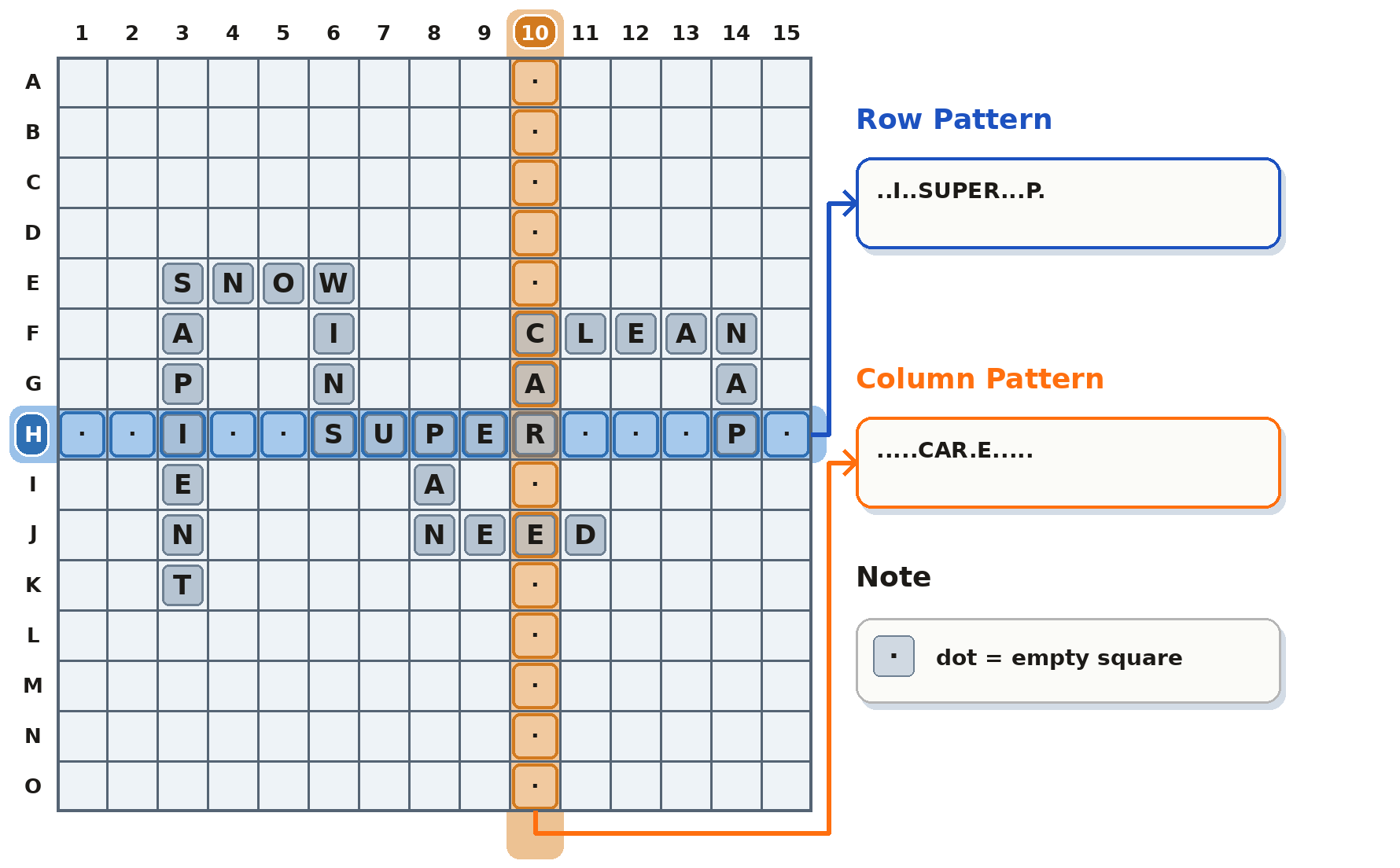
With Letters Available set to WANET and Board Pattern set to .ALL.BY....THE., matches can include WALL, BYTE, and THEN.
Arrange the results
After a search, use Group By, Sort By, and Score System inside Results. These controls rearrange the current matches immediately without running the search again.